



On this page
Add Login with RDCPASS
Your users sign in with their RDCPASS identity. They approve on their phone, with their face.
You need: an organization subscribed to Login with RDCPASS, and the Owner, Administrator or Marketing role.
Turn the service on
In the application’s Services & scopes, turn on Login with RDCPASS. Choose the scopes to request on top of the basic KYC, which is always included.
Set the consent screen
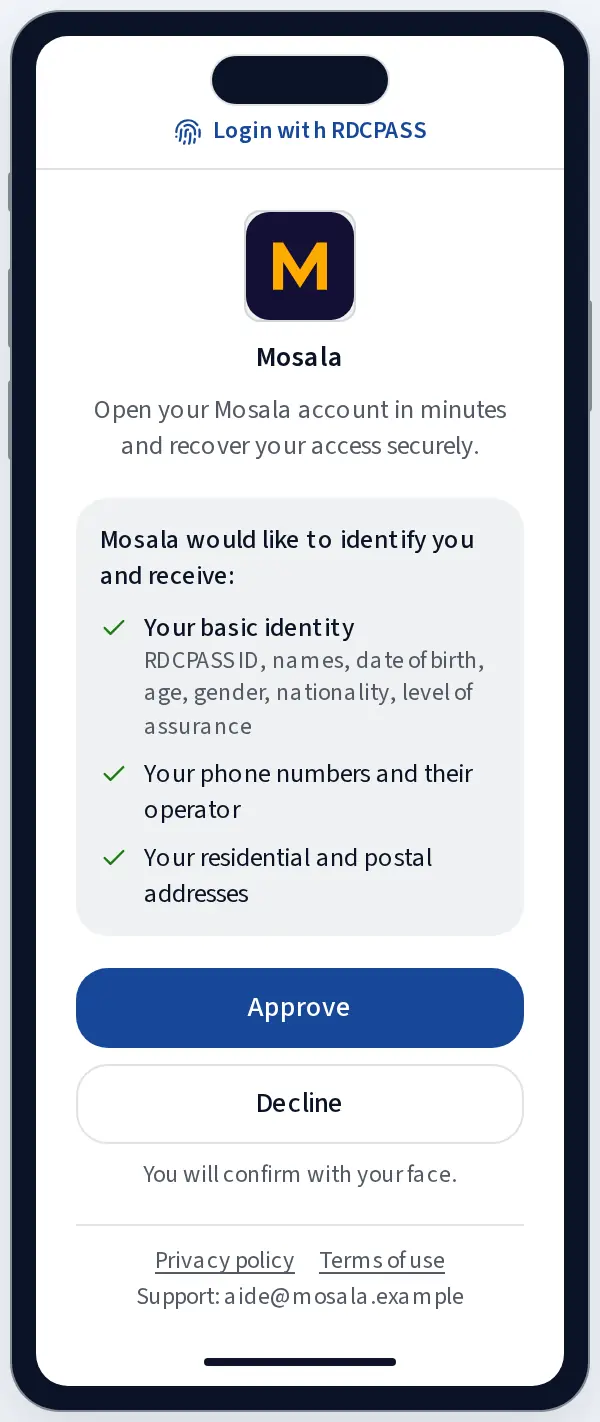
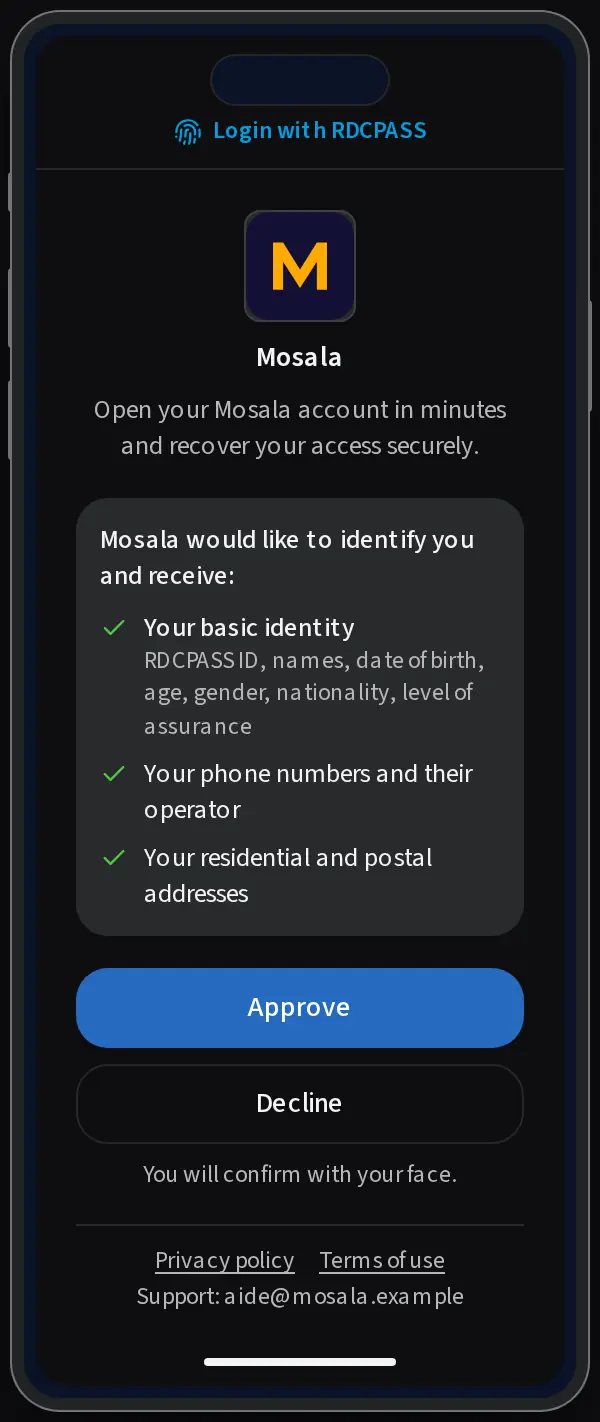
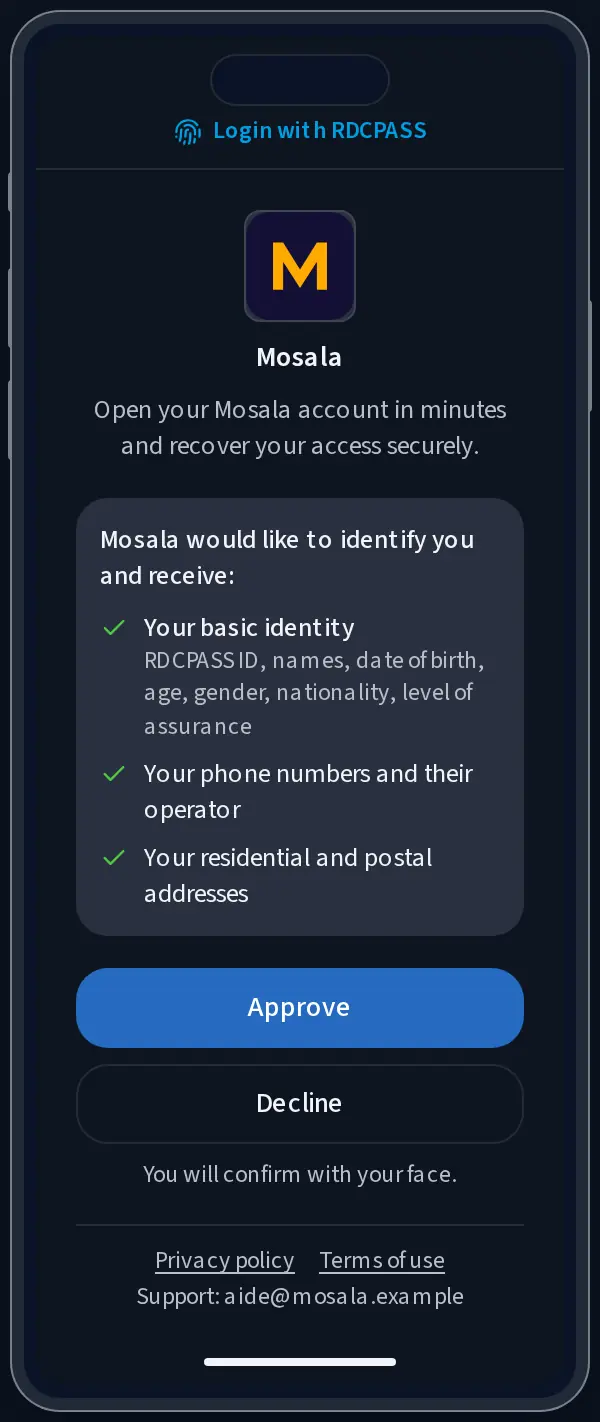
The consent screen preview, in the console. Under Branding, set what the citizen sees: your registered name or an approved trade name, a square PNG or SVG logo, a 140-character description in French and English, your privacy and support links. Each change applies at once and goes to the audit log.
Handle the three outcomes
authenticatedUser signed inPer monthly active user- The citizen approved: your application receives their basic KYC.
consent_deniedConsent declinedNot billed- The citizen declined on their phone. Offer them another way.
consent_abandonedConsent abandonedNot billed- The citizen did not answer in time. They can start again.
Each user is counted once a month, however many times they sign in.
It is an OpenID Connect redirect with PKCE: send the citizen to
GET /v1/oidc/authorizewith yourredirect_uri, registered in advance. RDCPASS sends them back there with a code, which your server exchanges atPOST /v1/oidc/token.Contract to be confirmed by the API team.
Where it’s used
Let customers sign in with their national identity
Add a "Login with RDCPASS" button to your website or app. Customers sign in with their national identity and choose which verified details to share with you.
- No passwords to store, manage or reset
- Verified profiles from the very first login
- Age checks without collecting identity documents
Technology & platforms
- Sign up with RDCPASS in one tap
- Sign up and sign in with RDCPASS — A new user taps one button, confirms on their phone with a face check and picks the details they are willing to share with you.
- Login with RDCPASS — One-tap sign-up and sign-in. The user decides what to share.
Social media & international digital companies
- Verified accounts and badges
- Verified accounts and badges — Users verify their account with Login with RDCPASS. They confirm on their phone with a face check and pick which details to share with you.
- Login with RDCPASS — Account verification that users confirm on their own phone, sharing only what they choose.
Government & public services
- Citizen sign-in with Login with RDCPASS
- Citizen portals — Citizens sign in with RDCPASS, confirm with a face check on their phone and decide which details the service receives.
- Login with RDCPASS — One sign-in across public portals, with the citizen deciding what each one receives.